


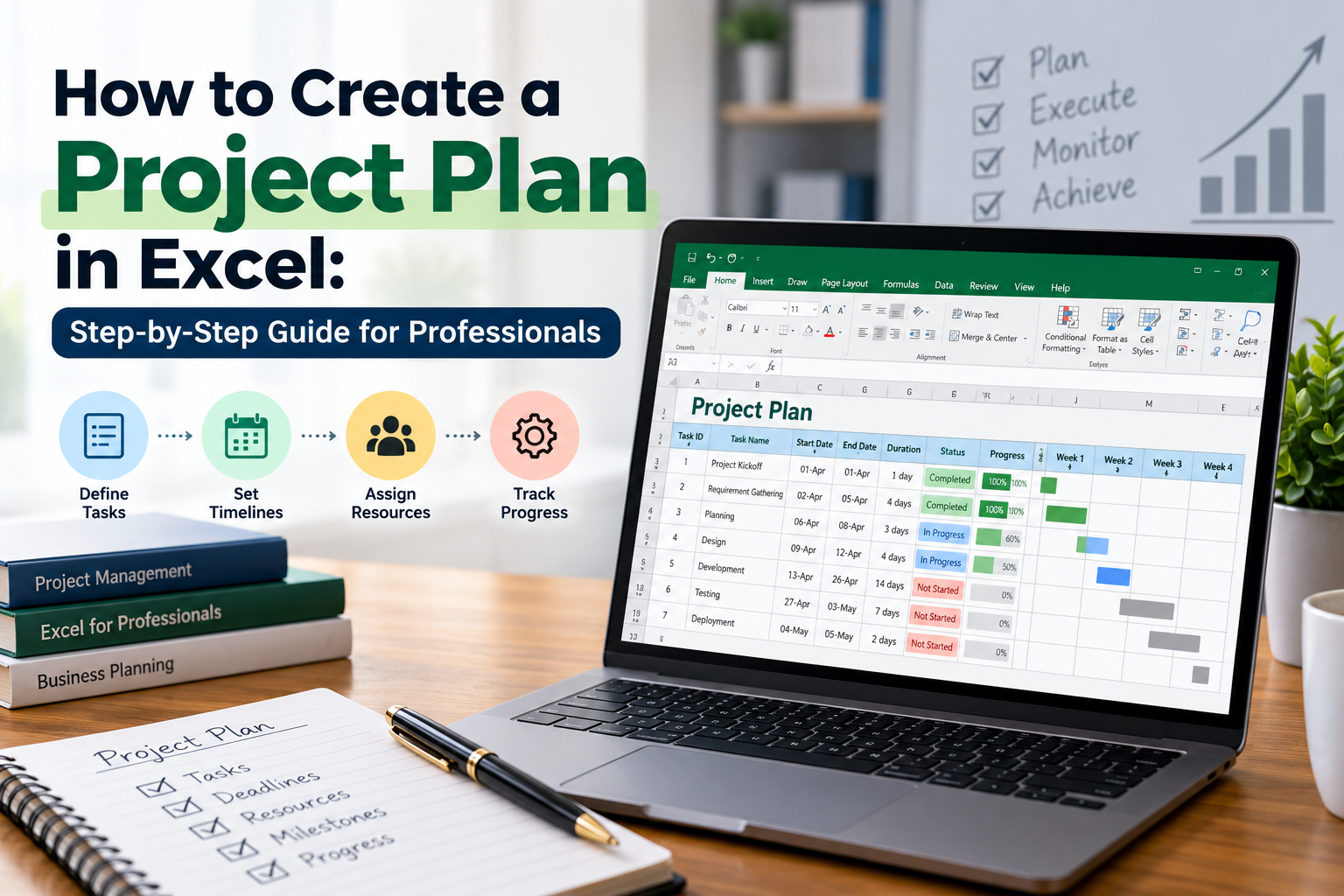

In today's fast-paced business environment, effective project management is crucial for achieving success. Whether you're managing a large team or a small project, having a well-structured project plan can make all the difference. One of the most versatile tools for project planning is Microsoft Excel. In this comprehensive guide, we'll walk you through the process of creating a project plan using a project plan template Excel. You'll learn how to create a project plan that is not only organized but also easy to update and share with your team. Let’s dive in!
Why Use Excel for Project Planning?
Excel is a powerful tool that offers flexibility, ease of use, and accessibility. Here are some reasons why professionals in India and beyond prefer using Excel for project planning:
Step 1: Define Your Project Goals
The first step in how to create a project plan is to clearly define your project goals. What do you want to achieve? Setting clear, SMART (Specific, Measurable, Achievable, Relevant, Time-bound) goals will guide your planning process and help keep your project on track.
Step 2: Identify Key Tasks and Milestones
Once you’ve defined your goals, the next step is to break them down into manageable tasks and milestones. List all the tasks that need to be completed and assign deadlines to each. Remember, milestones are significant points in your project timeline that indicate progress.
Using a Project Planning Template
To streamline this process, consider using a project planning template. Excel offers several templates that can help you get started. Here's how to find and use one:
Step 3: Create Your Project Timeline
With your tasks and milestones identified, it’s time to create a project timeline. This is where Excel shines. Here’s how you can do it:
Step 4: Assign Roles and Responsibilities
Every project requires a team. Assign roles and responsibilities to your team members to ensure accountability. In your Excel project plan, create a column for the “Assigned To” name next to each task. This will help clarify who is responsible for what.
Step 5: Monitor Progress and Update Regularly
Once your project plan is in motion, it’s important to monitor progress regularly. You can add a “Status” column in your Excel sheet to track whether tasks are “Not Started,” “In Progress,” or “Completed.” Regular updates will help identify any roadblocks early and keep the project on track.
Using Formulas for Tracking
Excel allows you to use formulas to automate tracking. For example, you can use the “COUNTIF” function to count the number of completed tasks, which can provide insights into your project’s overall progress.
Step 6: Review and Adjust Your Plan
Project plans are living documents. As your project progresses, you may need to make adjustments. Schedule regular review meetings with your team to discuss progress and make necessary changes to the project plan.
Conclusion
Creating a project plan in Excel is a straightforward process that can significantly enhance your productivity and project management skills. By following this step-by-step guide, you’ll be able to create a comprehensive project plan that helps your team stay organized and focused on achieving project goals. Remember, the key to successful project management lies in effective planning, monitoring, and flexibility.
FAQs
1. Can I use Excel for project planning if I have a small team?
Absolutely! Excel is ideal for both small and large teams. Its flexibility allows you to customize your project plan according to your team size and project complexity.
2. Are there any free project plan templates available for Excel?
Yes, Microsoft offers several free project plan templates within Excel that you can easily download and customize for your needs.
3. How do I ensure my project plan stays effective?
Regular updates, clear communication with your team, and being open to adjustments will help keep your project plan effective and relevant throughout the project lifecycle.
Call to Action
Ready to take your project management skills to the next level? Download a free project planning template for Excel today and start organizing your projects like a pro! Don’t let disorganization hold you back—embrace the power of effective planning and watch your project success soar!